Drop Down MenusCSS Drop Down MenuPure CSS Dropdown Menu

Wednesday, October 4, 2017

Getting Started with Dialog using Microsoft Bot framework


Introduction:
The Bot Framework enables you to build bots that support different types of interactions with users. You can design conversations in your bot to be freeform. Your bot can also have more guided interactions where it provides the user choices or actions. The conversation can use simple text strings or more complex rich cards that contain text, images, and action buttons. And you can add natural language interactions, which let your users interact with your bots in a natural and expressive way.
Bot Builder SDK introduced Dialogs, Users allow to model conversations and manage conversation flow. Dialogs can contain waterfall steps and prompts(Options). As the user interacts with the bot, the bot will start, stop, and switch between various dialogs in response based on user messages.
In this article, we will learn about the condition inside waterfall Bot Framework.
Prerequisite:
I have explained about Bot framework Installation, deployment and implementation the below article
Create New Bot Service:
Let start create new bot service application using Visual Studio 2017. Open Visual Studio > Select File > Create New Project (Ctrl + Shift +N) > Select Bot application
The Bot application template was created with all the components and all required NuGet references installed in the solutions .
In this Solution, we have two main class MessagesController.cs and RootDialog.cs , Let we start discuss about here .
RootDialog Class:
Step 1:
You can create / Edit the RootDialog class, create a class that is marked with the [Serializable] attribute (so the dialog can be serialized to state) and implement the IDialog interface.
using System;
using System.Threading.Tasks;
using Microsoft.Bot.Builder.Dialogs;
using Microsoft.Bot.Connector;
[Serializable]
   public class RootDialog : IDialog<object>
   {
}

Step 2:
IDialog interface have only StartAsync() methond. StartAsync() is called when the dialog becomes active. The method is passed the IDialogContext object, used to manage the conversation.
 public async Task StartAsync(IDialogContext context)
       {
       }

Step 3:
You can wait for a message from the conversation, call context.Wait() and pass it the method you called when the message is received. When MessageReceivedAsync() is called, it's passed the dialog context and an IAwaitable of type IMessageActivity. To get the message, await the result.
[Serializable]
   public class RootDialog : IDialog<object>
   {
       public Task StartAsync(IDialogContext context)
       {
           context.Wait(MessageReceivedAsync);

           return Task.CompletedTask;
       }

       private async Task MessageReceivedAsync(IDialogContext context, IAwaitable<object> result)
       {
           
       }
   }

Step 4:
Let start edit MessageReceivedAsync method as per your requirement or create new async method. The following code is welcome message conversation dialog.
[Serializable]
   public class RootDialog : IDialog<object>
   {
       static string username;
       int count = 0;
       public async Task StartAsync(IDialogContext context)
       {
           await context.PostAsync("Hello, I am Microsoft Bot");
           context.Wait(MessageReceivedAsync);
       }

       private async Task MessageReceivedAsync(IDialogContext context, IAwaitable<object> result)
       {
           var message = await result as Activity;
           
           if(count >0)
               username = message.Text;

           if (string.IsNullOrEmpty(username))
           {
               await context.PostAsync("what is your good name");
               count++;
           }
           else
           {
                await context.PostAsync($"Hello {username} , How may help You");
     
           }
           context.Wait(MessageReceivedAsync);

       }
   }

IDialogContext have following Public Member Functions
  1. Context.Call< R > (IDialog< R > child, ResumeAfter< R > resume)
Call a child dialog and add it to the top of the stack.
  1. Context.Done< R > (R value)
Complete the current dialog and return a result to the parent dialog.
  1. Context .Fail (Exception error)
Fail the current dialog and return an exception to the parent dialog.
  1. Context .Forward< R, T > (IDialog< R > child, ResumeAfter< R > resume, T item, CancellationToken token)
Call a child dialog, add it to the top of the stack and post the item to the child dialog.
  1. Context .Post< E > (E @event, ResumeAfter< E > resume)
Post an internal event to the queue.
  1. Context .Reset ()
Resets the stack
  1. Context .Wait< R > (ResumeAfter< R > resume)
Suspend the current dialog until an external event has been sent to the bot.
MessagesController Class :
The RootDialog class is added to the conversation in the MessageController class via the Post() method. In the Post() method, the call to Conversation.SendAsync() creates an instance of the RootDialog, adds it to the dialog stack to make it the active dialog, calling the RootDialog.StartAsync() from Post method
[BotAuthentication]
   public class MessagesController : ApiController
   {
       ///
       /// POST: api/Messages
       /// Receive a message from a user and reply to it
       ///
       public async Task<HttpResponseMessage> Post([FromBody]Activity activity)
       {
           if (activity.Type == ActivityTypes.Message)
           {
               await Conversation.SendAsync(activity, () => new Dialogs.RootDialog());
           }
           else
           {
               HandleSystemMessage(activity);
           }
           var response = Request.CreateResponse(HttpStatusCode.OK);
           return response;
       }

Run Bot Application:
The emulator is a desktop application that lets we test and debug our bot on localhost. Now, you can click on "Run the application" in Visual studio and execute in the browser.


Test Application on Bot Emulator
You can follow the below steps to test your bot application.
  1. Open Bot Emulator.
  2. Copy the above localhost url and paste it in emulator e.g. - http://localHost:3979
  3. You can append the /api/messages in the above url; e.g. - http://localHost:3979/api/messages.
  4. You won't need to specify Microsoft App ID and Microsoft App Password for localhost testing, so click on "Connect".
Summary:
In this article, your learned how to create a Bot application using Visual Studio 2017 with Bot dialog API. If you have any questions/ feedback/ issues, please write in the comment box.

Saturday, June 10, 2017

Getting Started with Building Bots using Visual Studio 2017

Introduction:
The Bot Framework enables you to build bots that support different types of interactions with users. You can design conversations in your bot to be freeform. Your bot can also have more guided interactions where it provides the user choices or actions. The conversation can use simple text strings or more complex rich cards that contain text, images, and action buttons. And you can add natural language interactions, which let your users interact with your bots in a natural and expressive way.
In this article, we can create a bot by using the Visual studio 2017 with Bot template and testing it with the Bot Emulator.
Install Visual Studio 2017:
Download Visual Studio 2017 from the following URL given below.  
  • Download Visual Studio 2017 from https://www.visualstudio.com/downloads/.
  • Refer Visual Studio 2017 system requirement from https://www.visualstudio.com/en-us/productinfo/vs2017-system-requirements-vs.
Note:
  • You can build bots for free with Visual Studio 2017 Community.
  • The Bot Builder SDK for .NET currently supports Only on Windows. Visual Studio for Mac is not supported.
Bot Application template:
Download the Bot Application template from the following url http://aka.ms/bf-bc-vstemplate and install the template by saving the .zip file to your Visual Studio 2017 project templates directory.
The Visual Studio 2017 project templates directory is typically located following url
%USERPROFILE%\Documents\Visual Studio 2017\Templates\ProjectTemplates\Visual C#\
C:\Users\DevEnvExe\AppData\Local\Microsoft\Windows\INetCache\Content.Word\template.png

Create New Project:
Let's start with creating a new Bot application in Visual Studio 2017.
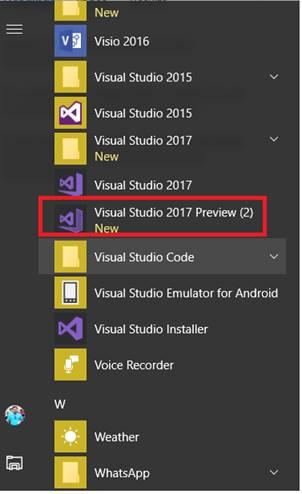
Click on Windows Key > Select Visual Studio 2017.

Xamarin
Now, open VS and create new project with c# project, select the Bot applications template as per below
The Bot application was created with all of the components and installed all required Nuget reference
Update Bot Builder Nuget Package:
Verify your application Microsoft.Bot.Builder nuget package was installed under reference .if not , refer follow below steps
  • Right-click on the Bot project(DevEnvExeBot) and select Manage NuGet Packages.
  • In the Browse tab, type "Microsoft.Bot.Builder" and click on Search
  • Locate the Microsoft.Bot.Builder package in the list of search results, and click the Update button for that package or Uninstall and Install the package .
Update Code:
The Default application added simple conde snipper, no need to change anything. if you want to test your custom message, you can change like below.
You can find messagereceiveAsync method from Dialogs / RootDialog.cs file.
In this method activity.Text will return user text input so you can reply message based input text .
  1. private async Task MessageReceivedAsync(IDialogContext context, IAwaitable result)
  2.        {
  3.            var activity = await result as Activity;

  4.            // calculate something for us to return
  5.            int length = (activity.Text ?? string.Empty).Length;

  6.            // return our reply to the user
  7.            
  8.            //test
  9.            if (activity.Text.Contains("technology"))
  10.            {
  11.                await context.PostAsync("Refer C# corner website for tecnology http://www.c-sharpcorner.com/");
  12.            }
  13.            else if (activity.Text.Contains("morning"))
  14.            {
  15.                await context.PostAsync("Hello !! Good Morning , Have a nice Day");
  16.            }
  17.            //test
  18.            else if (activity.Text.Contains("night"))
  19.            {
  20.                await context.PostAsync(" Good night and Sweetest Dreams with Bot Application ");
  21.            }
  22.            else if (activity.Text.Contains("date"))
  23.            {
  24.                await context.PostAsync(DateTime.Now.ToString());
  25.            }
  26.            else
  27.            {
  28.                await context.PostAsync($"You sent {activity.Text} which was {length} characters");
  29.            }

  30.            context.Wait(MessageReceivedAsync);
  31.        }
Install bot Emulator:
You will need to download and install the emulator for testing bot application .You can download bot emulator from https://docs.microsoft.com/en-us/bot-framework/debug-bots-emulator .

Run Bot Application:
The emulator is a desktop application that lets you test and debug your bot on localhost or remotely. Now, you can click on run the application in any browser
Test Application on Bot Emulator:
You can follow below steps for test bot application
  1. Open Bot Emulator
  2. Copy above localhost url and past it from emulator eg: http://localHost:3979
  3. You can append the /api/message from above localhost url eg: http://localHost:3979/api/messages.
  4. You won't need to specify Microsoft App ID and Microsoft App Password for localhost testing so click on Connect


 Download
You can download the complete source code from MSDN sample. 
Summary:
This article your learned about how to create Bot application using visual studio 2017.

If you have any questions/ feedback/ issues, please write in the comment box.